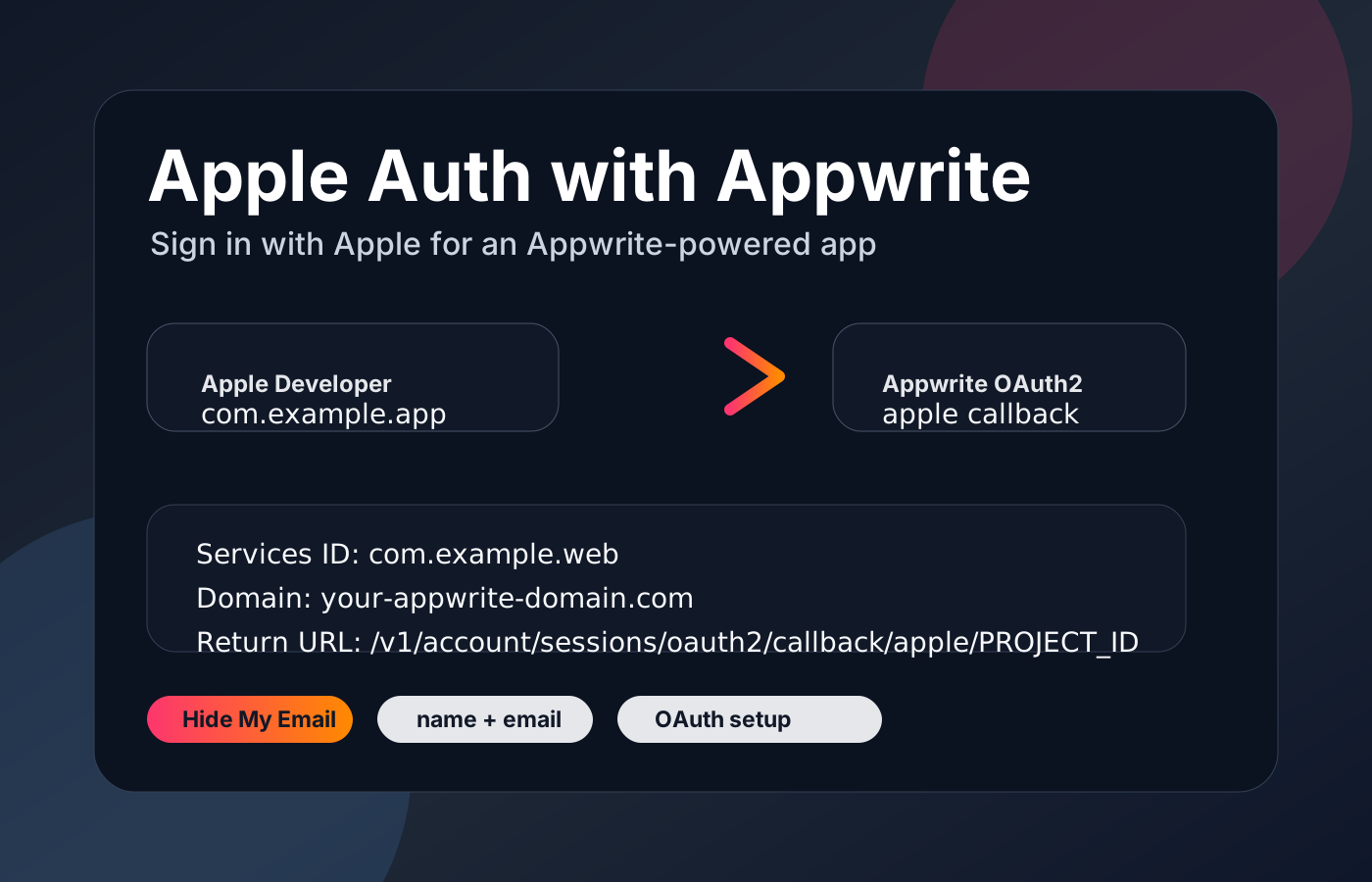
How to Enable Sign in with Apple in Appwrite
A short guide for setting up Sign in with Apple as an OAuth provider in Appwrite, including the Apple Developer settings, Appwrite configuration, and the basic app-side login button.
1. Enable Sign in with Apple for your app
In the Apple Developer portal, open your app identifier and enable Sign in with Apple. This is required before Apple can be used as a login provider. Make sure the bundle identifier matches the iOS app that will use the authentication flow.
2. Create a Services ID
Create a Services ID for the web-based OAuth flow that Appwrite handles. After creating it, enable Sign in with Apple and configure the web authentication settings with your Appwrite domain and callback URL.
3. Create an Apple private key
Create a new key in Apple Developer and enable Sign in with Apple for it. Download the .p8 private key file and keep it safe, because Apple only allows you to download it once.
4. Configure Apple OAuth in Appwrite
Open your Appwrite console, go to the authentication provider settings, and enable Apple as an OAuth provider. Paste the Services ID, Team ID, Key ID, and full private key contents.
5. Add Sign in with Apple to your app
After the provider is configured, add a Sign in with Apple button in your app and start the OAuth session through Appwrite. If your app also offers other third-party login options, Apple Sign In should be shown as an equivalent option.
6. App Review note
If you are submitting an iOS app to App Review, include a short note explaining that the Apple login option uses the same account creation flow and supports Apple privacy features.